
Kingston FURY Impact 16GB (2x8GB) DDR4-3200 CL20 SO-DIMM Laptop Memory Kit, 260-pin, 1.2V, Non-ECC Unbuffered


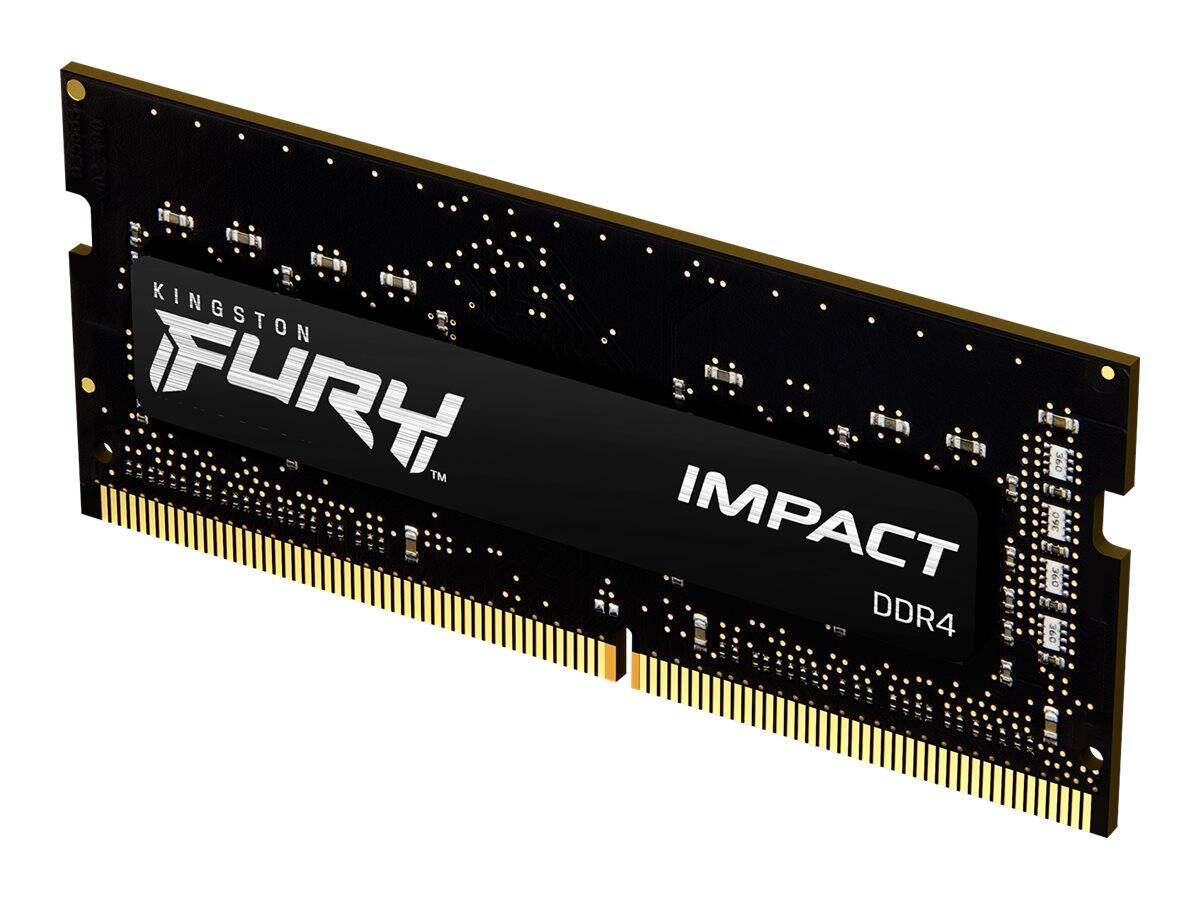


Kingston FURY Impact 16GB (2x8GB) DDR4-3200 CL20 SO-DIMM
The Kingston FURY Impact 16GB (2x8GB) is a DDR4-3200 CL20 DDR4 SO-DIMM memory kit for gaming laptops, mini PCs and Intel NUC or AMD Ryzen small-form-factor systems. It ships as two identical 8GB modules, so a laptop with two memory slots runs in dual-channel mode straight away.
FURY Impact uses Kingston Plug N Play: it engages its factory DDR4-3200 CL20 profile automatically, and it also carries Intel XMP profiles (DDR4-3200 CL20 and DDR4-2933 CL17) for systems that expose them. Kingston notes that the actual maximum speed is determined by the system BIOS. At DDR4-3200 each module moves up to 25.6 GB/s, and the pair together doubles that in dual-channel.
Before you buy, three things decide whether a memory upgrade works: the memory generation (this is DDR4 — not DDR3 or DDR5), the form factor (SO-DIMM, the short 260-pin laptop module) and how much your system accepts per slot and in total. Speed and latency come after that: a faster module never hurts, because it steps down to whatever the platform runs, but it only helps if the system can use it. If you are replacing a module rather than adding one, note the capacity and speed of what is fitted now — Windows Task Manager (Performance, then Memory) shows the speed in use, the number of slots and how many are occupied.
What's in the Box
- 2 × 8GB DDR4 SO-DIMM modules (16GB in total)
- Manufacturer packaging
- No tools, cables or software — none are needed; most laptops only require a small screwdriver to open the memory cover
What It Means in Practice
- Install one module per slot to get dual-channel bandwidth; using only one of the pair halves the memory bandwidth.
- The module runs at the lower of its rated speed and the speed your platform supports — on a DDR4-2400 or 2666 laptop it will simply run at 2400 or 2666.
- 16GB is the practical sweet spot for Windows 11, office work, browsing with many tabs and light creative work.
- Mixing it with a different existing module usually works, but the system will fall back to the slowest speed and loosest timings of the two — a matched set avoids surprises.
- Fitting it is a five-minute job on most laptops with a memory cover; we can also install it for you at our Limassol store.
- Handle the module by its edges and touch a metal surface first; insert it at about 30 degrees, fully into the slot, then press down until the side clips lock.
- The operating system detects the new memory automatically — there are no drivers to install. The first start after a memory change can take a little longer while the system trains the memory.
- If the laptop has soldered memory plus one free slot, the module adds to the soldered memory; dual-channel then works best when the two capacities match.
What Will Not Work
- Desktop PCs with full-size DIMM slots — this is a 260-pin SO-DIMM and does not fit a desktop slot.
- DDR3, DDR3L or DDR5 laptops — the notch position is different and the module will not seat.
- Laptops, tablets and ultrabooks with fully soldered memory, including Apple silicon Macs.
- Servers and workstations that require ECC or registered (RDIMM) memory.